
Deploy Blob Web Explorer in your Azure subscription
A step-by-step guide for Azure administrators: prepare your identity provider, run the Marketplace wizard, and give your teams a governed file explorer for Azure Blob Storage.
Before you start
Blob Web Explorer is deployed as an Azure Managed Application. All resources run in your subscription and Marketplace charges appear on your Azure invoice.
Prepare identity
Create the sign-in App Registration, roles or groups, and Graph permissions. About 15 minutes.
Deploy
Run the Azure Marketplace wizard. About 10 minutes, plus a few minutes of automatic provisioning.
Go live
Add the redirect URI, grant access to the application data storage, assign the first administrator, and connect storage. About 5 minutes.
What you need
- An Azure subscription with a valid payment method, and an account allowed to create resources and resource groups in it (Contributor on the subscription). The roles of the application's managed identity are assigned automatically inside the managed resource group; you do not need Owner or User Access Administrator.
- Permission to create App Registrations in your Microsoft Entra ID tenant (or Azure AD B2C tenant), and an administrator able to grant admin consent for the API permissions of step 5 (Microsoft Graph, Azure Service Management, Azure Storage).
- An existing storage account for the application data, in the same subscription if you use the managed identity method (see Application data storage). With the managed identity method, an account able to assign roles on that storage account after deployment.
- Outbound HTTPS from Azure App Service to the endpoints listed in Network requirements.
Phase 1 · Prepare identity
Microsoft Entra ID with App Roles
Create the App Registration
- In the Azure portal, open Microsoft Entra ID → App registrations and select New registration.
- Name it, for example
Blob Web Explorer, and select Accounts in this organizational directory only. - Leave the redirect URI empty — you will add it after deployment — and select Register.
- From the Overview page, note the Directory (tenant) ID and the Application (client) ID.
Create a client secret
- Open Certificates & secrets → New client secret, add a description and an expiry, then select Add.
- Copy the secret Value immediately: it is shown only once.
Enable ID tokens
Open Authentication, check ID tokens under Implicit grant and hybrid flows, and save.
Declare the application roles
Open App roles → Create app role three times, with Allowed member types set to Users/Groups:
| Display name | Value | Description |
|---|---|---|
| Blob Web Explorer Admin | BWE.Admin | Administers the deployment and all containers |
| Blob Web Explorer Contributor | BWE.Contributor | Links, manages, and shares containers |
| Blob Web Explorer Reader | BWE.Reader | Works with containers shared with them |
Add API permissions and grant consent
Blob Web Explorer uses this single App Registration for three things: signing users in, reading your directory to help users share containers, and acting on behalf of the signed-in user when they browse Azure or open storage with their own Azure access. Each permission below is tied to a feature; none of them gives Blob Web Explorer access to your storage on its own.
How to add them
- Open API permissions → Add a permission.
- Microsoft Graph → Delegated permissions: check
openid,profile,offline_access, andUser.Read(usually already present), then Add permissions. - Microsoft Graph → Application permissions: check
User.Read.All,Group.Read.All, andGroupMember.Read.All, then Add permissions. - Recommended: Add a permission → Azure Service Management → Delegated permissions → user_impersonation.
- Recommended: Add a permission → Azure Storage → Delegated permissions → user_impersonation.
- Select Grant admin consent for <your organization> and confirm. Every line must show the status Granted for <your organization>.
Azure Service Management and Azure Storage are listed under APIs Microsoft uses in older portals and under the Microsoft APIs tab otherwise. Granting admin consent requires a Cloud Application Administrator, Application Administrator, or Privileged Role Administrator.
Sign-in permissions (Microsoft Graph, delegated) — required
| Permission | Why Blob Web Explorer needs it | Without it |
|---|---|---|
openid | Signs users in with Microsoft Entra ID and identifies them. | Nobody can sign in. |
profile | Displays the user's name in the application. | Users appear without a display name. |
offline_access | Lets Blob Web Explorer renew the user's Azure access in the background, so users are not asked to sign in again each time they browse Azure or open a container linked with their Azure identity. | Users are sent back to the sign-in page much more often. |
User.Read | Added by Azure to every App Registration: lets a user read their own profile. Keep it. | No feature depends on it directly. |
Directory permissions (Microsoft Graph, application) — required, admin consent
These are used by the application itself, without a signed-in user, and only to read your directory. Blob Web Explorer never creates, changes, or deletes users or groups.
| Permission | Why Blob Web Explorer needs it | Without it |
|---|---|---|
User.Read.All | Finds people of your organization when a container is shared (search by name or email, suggestions in the sharing form), and is used by the Microsoft Graph health check in Admin settings. | No suggestions in the sharing form, user lookup by email fails, and the Graph health check reports an error. |
Group.Read.All | Lists your Microsoft Entra ID groups so a container can be shared with a whole group. | Groups do not appear in the sharing form. |
GroupMember.Read.All | Reads the members of a group when a container is shared with that group, so that each member receives access. | Sharing with a group may give access to nobody. The deployment wizard also asks you to confirm this permission. |
Azure access on behalf of the user (delegated) — recommended
With these two permissions, Blob Web Explorer can act only with the Azure rights of the signed-in user and only during their session. They are not roles on your storage: a user without an Azure role on a storage account still cannot see or open it. Blob Web Explorer never uses its own identity to reach your containers.
| Permission | Why Blob Web Explorer needs it | Without it |
|---|---|---|
Azure Service Management → user_impersonation | Discover from Azure: lists the subscriptions, storage accounts, and containers the user can see in Azure, and, when the user's Azure role allows it, reads the storage account keys to create the container link. | Discover from Azure is unavailable. Containers can still be linked manually with a SAS URL or a connection string. |
Azure Storage → user_impersonation | Opens storage with the user's own Azure data roles (Storage Blob Data Reader or Contributor): containers linked with Azure Identity and Personal links, read/write detection when a container is linked, and links signed with the user's Azure account (7 days maximum) created by Discover from Azure. | Azure Identity links and links based on data roles fail; users with only data roles must generate a SAS themselves and use Link with a SAS URL you generated. Links created from storage account keys still work. |
user_impersonation permissions as not requiring admin consent, but many organizations block user consent. In that case users see an Approval required screen, or the error AADSTS65001, when they use Discover from Azure or open a container with their Azure identity. Granting admin consent once in step 5 avoids this for everyone.Final check
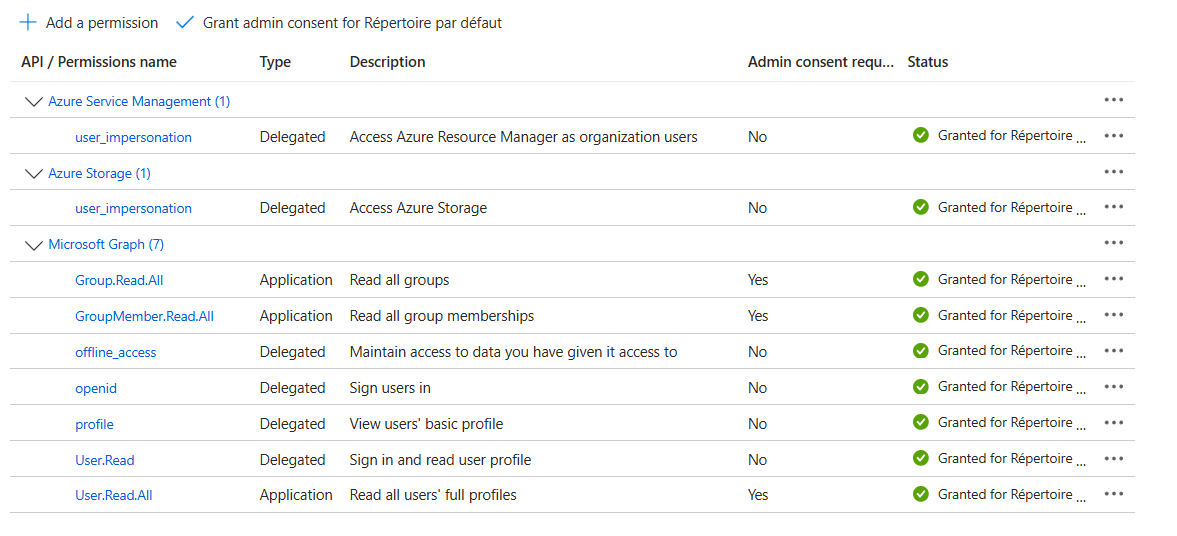
| API | Permission | Type | Status expected |
|---|---|---|---|
| Microsoft Graph | openid, profile, offline_access, User.Read | Delegated | Granted |
| Microsoft Graph | User.Read.All, Group.Read.All, GroupMember.Read.All | Application | Granted (admin consent required) |
| Azure Service Management | user_impersonation | Delegated | Granted (recommended) |
| Azure Storage | user_impersonation | Delegated | Granted (recommended) |
Azure AD B2C with groups
- Register the application in your B2C tenantCreate an App Registration for user flows, then note the tenant domain (for example
contoso.onmicrosoft.com), the tenant ID, and the application (client) ID. - Create a client secretCopy its value immediately.
- Create the sign-up and sign-in user flowThe wizard proposes the name
B2C_1_register_signin; use the name of your own flow if it differs. - Create the role groupsCreate
BWE_Admin,BWE_Contributor, andBWE_Reader, and add users directly to them. - Add Microsoft Graph permissionsAdd the Application permissions
User.Read.All,Group.Read.All, andGroupMember.Read.All, then grant administrator consent. Group membership is read at each sign-in.
Phase 2 · Deploy
Run the Azure Marketplace wizard
Basics
In Azure Marketplace, search for Blob Web Explorer, select the plan, then Create. Choose the subscription, a resource group (a new one is recommended), the region, and the names below.
- Application name
- Name of the managed application resource, shown under Managed applications (for example
blobexplorer-finance). Give this name to support when you contact us. - Managed resource group
- Resource group that will contain the BlobExplorer resources (web app, monitoring). The application data storage account is yours and stays outside it. The proposed default name can be kept.
Application setup
- Workspace name (resource prefix)
- Not the same as the Application name. Short prefix of 3 to 12 lowercase letters or digits used to name the resources and the web address of your BlobExplorer:
https://app-bwe-<workspace>-<suffix>.azurewebsites.net. Use a name that identifies the instance, for examplefinance. Default:bwe. - Identity provider
- Entra ID — App roles or Azure B2C — Groups.
- Entra ID fields
- Tenant ID, application (client) ID, and client secret from Phase 1. Enter the secret Value, not the Secret ID; the form rejects a client ID identical to the tenant ID.
- Azure B2C fields
- Tenant domain, tenant ID, application (client) ID, client secret (Value), and user flow name.
- Prerequisites confirmation
- Confirm that roles (Entra ID) or groups (B2C) exist, that at least one administrator is assigned, and that the Graph permissions have administrator consent.
- Redirect URI confirmation
- Confirm that you will add the redirect URI after deployment (step 12).
Hosting
Choose Create a new plan and select a size:
| App Service plan | Recommended use |
|---|---|
| B1 – B3 (Basic) | Evaluation, development, and testing |
| S1 – S3 (Standard) | Production — S1 is the recommended starting point |
| P1v3 – P2v3 (Premium v3) | Larger teams, heavier usage, or premium App Service requirements |
Or choose Use an existing plan: the list only shows Linux App Service plans located in the deployment region with a Basic, Standard or Premium tier. An existing plan stays under your control; scaling it down, stopping it or deleting it affects Blob Web Explorer.
You can change the plan size after deployment. Large uploads (up to 195 GiB) are handled by the web application itself. Confirm the outbound network prerequisites to continue.
In the Network step, keep Public (default) or choose Private to make the application reachable only from your virtual network. See Private network access for the subnets and DNS to prepare beforehand.
Application data
Blob Web Explorer stores its own data (users, linked containers, shares, search index, activity) in tables of an existing storage account that you provide. The deployment never creates it. It must be a general-purpose v2 account, Standard tier, with the Table service. Choose how the application connects to it:
- Managed identity (recommended)
- Select the storage account in the list (accounts of the deployment subscription). No secret is stored. You grant the access after deployment (step 13).
- Connection string
- Paste the storage account connection string (it must contain the account name and key). It is stored securely in your deployment.
You can change the storage account or the method at any time from Administration → Data storage. Data is not copied automatically.
Monitoring
Create a new Application Insights resource (default), select an existing one, or choose not to use Application Insights. Without it, no telemetry or application logs are collected, which makes troubleshooting harder.
Review and create
Review the summary, accept the terms, and select Create. The deployment usually completes in a few minutes.
What gets deployed
Resources are created in the managed resource group of your subscription. If you selected an existing App Service plan or Application Insights, that resource is reused and stays where it is. Your application data storage account is never created or modified by the deployment.
| Resource | Role | Security defaults |
|---|---|---|
| App Service plan (Linux) | Compute for the application | New plan sized in the wizard, or your existing plan |
| Web App | Runs the Blob Web Explorer container and holds its deployment secrets (client secret, upload key, provisioned credentials) as encrypted application settings | HTTPS only, TLS 1.2, FTPS disabled, system-assigned managed identity; settings not readable from your account |
| Application Insights | Application telemetry and logs | Optional: new workspace-based resource, your existing one, or none |
| Role assignment | Lets the managed identity read its resource group | Reader on the resource group |
| Private endpoint and private DNS zone (Private network access only) | Inbound access from your virtual network | Network interface in your subnet; DNS zone privatelink.azurewebsites.net created only if you choose so; your virtual network itself is never modified |
| Your storage account (not deployed) | Application data: users, linked containers, shares, search index, activity logs | Under your control: backup, network rules, retention, keys |
Phase 3 · Go live
Complete the setup
Add the redirect URI
- Open the managed application in the Azure portal, then Parameters and Outputs. Copy
webAppUrlandredirectUri. - On your App Registration, open Authentication → Add a platform → Web and paste the redirect URI. It has this form:
https://app-bwe-<workspace>-<suffix>.azurewebsites.net/signin-oidc
AADSTS50011 (reply URL mismatch).Grant access to the application data storage
Only with the managed identity method. The deployment cannot do it because your storage account is outside the managed resource group.
- In Parameters and Outputs, copy
grantStorageAccessCommandand run it in Azure Cloud Shell (Azure CLI) with an account allowed to assign roles on the storage account. It has this form:
az role assignment create --assignee-object-id <webAppPrincipalId> --assignee-principal-type ServicePrincipal --role "Storage Table Data Contributor" --scope <storage-account-resource-id>
Or, in the portal: storage account → Access control (IAM) → Add role assignment → Storage Table Data Contributor → Managed identity → select the web app (its object ID is the webAppPrincipalId output).
Assign the first administrator
- Entra ID: open Enterprise applications, select your application, then Users and groups → Add user/group, and assign
BWE.Admin. - Azure AD B2C: add the user directly to the
BWE_Admingroup.
Users without a role can still sign in with Reader access. Assign Contributor or Reader to other users the same way.
Sign in and run the setup checklist
Open the webAppUrl, sign in as the administrator, and open Administration → Deployment checklist. The checklist confirms that identity, roles, and configuration are ready. Review Administration → Admin settings for the deployment context.
Connect your storage
Make your first containers available to your teams.
Link a container
From Containers → Link a container (also a button on Home and Manage containers), connect one container with Azure Identity (Entra ID), a SAS URL, or a connection string. With Azure Identity, access follows each user's Azure RBAC.
How to link a containerAzure Discovery
Admins can find and link containers across subscriptions with Containers → Discover from Azure (also a button on Manage containers). Available with Microsoft Entra ID sign-in. Requires the delegated user_impersonation permissions of Azure Service Management and Azure Storage (step 5).
Azure roles on your storage
| Need | Azure role | Scope |
|---|---|---|
| List storage accounts (Azure Discovery) | Reader | Subscription, resource group, or storage account |
| Browse and download | Storage Blob Data Reader | Storage account or container |
| Upload, rename, move, delete | Storage Blob Data Contributor | Storage account or container |
Reference
Application data storage
The storage account that holds Blob Web Explorer's own data is yours.
Requirements
- Existing general-purpose v2 storage account, Standard tier, with the Table service.
- You are fully responsible for it: backup, network rules, retention, and keys. We have no access to it.
- Managed identity method: Storage Table Data Contributor assigned to the web application identity on the storage account.
- Storage firewall: allow the outbound IP addresses of the web application, or, with Private network access, add a private endpoint for the Table service resolvable from your virtual network.
Change the storage later
- Open Administration → Data storageThe panel shows the current status, method, and storage account, and the cause of any error.
- Choose the methodManaged identity (enter the storage account name or Table endpoint, then grant the role as in step 13) or connection string.
- Test the connectionThe test checks that the application can create, write, read, and delete a test entry, and explains any failure (missing role, Blob role instead of Table role, firewall, invalid key, account not found).
- SwitchConfirm that data is not copied, then select Use this storage. The change applies immediately, without restart. Copy existing tables yourself beforehand if you need them.
Roles
Application roles are managed in your identity provider, not in Azure IAM.
| Role | Entra ID App Role | B2C group | Capabilities |
|---|---|---|---|
| Admin | BWE.Admin | BWE_Admin | Everything a Contributor can do, plus Deployment checklist, Admin settings, Discover from Azure (Entra ID sign-in), and visibility on all containers |
| Contributor | BWE.Contributor | BWE_Contributor | Link, manage, and share own containers; usage & costs; activity log |
| Reader | BWE.Reader | BWE_Reader | Work with containers shared with them, within the share permission |
Role changes take effect at the next sign-in. Full details: Roles & permissions.
Network requirements
Required only if your environment filters outbound traffic (firewall, proxy, forced tunneling).
| Destination | Port | Purpose |
|---|---|---|
blobwebexplorer.azurecr.io | 443 | Container registry login |
*.blob.core.windows.net | 443 | Container image layers, or service tags AzureContainerRegistry.WestEurope and Storage.WestEurope |
func-bwe-supportapi-prd-we.azurewebsites.net | 443 | BlobExplorer support service (Customer Hub) |
Private network access
Keep Blob Web Explorer inside your virtual network with a private endpoint, VNet integration, and private DNS.
Prepare before deploying
- An existing virtual network in the deployment region. Blob Web Explorer never modifies it.
- Integration subnet (outbound): delegated to
Microsoft.Web/serverFarms, /28 minimum, /26 recommended. - Private endpoint subnet (inbound): a regular subnet without delegation.
- If you reuse an App Service plan already integrated with a virtual network, select that same virtual network.
Private DNS
- Create a private DNS zone
- A
privatelink.azurewebsites.netzone is created with the deployment and linked to your virtual network. Not possible if this network is already linked to a zone with the same name. - Use my existing zone
- The application is registered in your
privatelink.azurewebsites.netzone, typically in a hub. - I manage the DNS records myself
- Create the A records for the application and its
.scmname pointing to the private endpoint IP, or let your Azure Policy do it.
The application keeps its azurewebsites.net address and its redirect URI: inside your network, the name resolves to the private IP. Peered networks and on-premises sites must use a DNS resolver that sees the zone.
Outbound traffic
All outbound traffic of the application goes through your virtual network. Allow outbound HTTPS (443) from the integration subnet to:
| Destination | Purpose |
|---|---|
blobwebexplorer.azurecr.io, *.blob.core.windows.net | Application image |
login.microsoftonline.com (or your <tenant>.b2clogin.com), graph.microsoft.com | Sign-in and roles |
management.azure.com | Discover from Azure |
func-bwe-supportapi-prd-we.azurewebsites.net | Support service |
| Application Insights ingestion (or an Azure Monitor Private Link Scope) | Telemetry |
| Your storage accounts | Through their private endpoints (blob and table) resolvable from the virtual network, or their public endpoints |
Operations & publisher access
What we can and cannot do in your deployment.
- Limited management access. As with every Azure Managed Application, we have management access to the managed resource group. It is used only to deliver deployment credentials to the application, restart it, and resolve issues you report.
- Your data. We do not use this access to read your application data or the content of your storage accounts, unless you ask for it during a support case. Your application data storage account is outside the managed resource group and we have no access to it.
- Updates. The application runs the current Blob Web Explorer release; restarting the web app applies it. Changes are listed in What's new.
- Removal. Deleting the managed application deletes its resource group (web app and any monitoring created by the deployment). Your application data storage account and your other storage accounts are not affected.
Contractual terms: Terms of Use — Azure Marketplace.
Troubleshooting
Most first-deployment issues come from identity configuration or network filtering.
| Symptom | Resolution |
|---|---|
Sign-in error AADSTS50011 | Add the exact redirectUri output as a Web redirect URI (step 12), without a trailing slash. |
Sign-in error AADSTS700054 | Enable ID tokens on the App Registration (step 3). |
| Signed in, but only Reader access | Assign the role or group (step 14), check the Graph admin consent (step 5), then sign out and back in. |
| Banner "Application data unavailable" | Open Administration → Data storage to see the cause. Most often: the Storage Table Data Contributor role is missing or a Blob role was assigned instead (step 13), the storage firewall blocks the application, or the account key was regenerated. Fix it, then select Check again. |
| The application does not respond right after deployment | Provisioning and the first start can take several minutes. If it persists after 15 minutes, check the network requirements and contact support with the managed application name. |
| Azure Identity option unavailable | It requires Entra ID sign-in. With Azure AD B2C, use a SAS URL or a connection string. |
Azure Discovery or Azure Identity asks for approval, or fails with AADSTS65001 | Add the delegated Azure Service Management and Azure Storage user_impersonation permissions, grant admin consent (step 5), and check the user's Azure roles. |
| Client secret about to expire | Create a new secret and contact support to plan the update in your deployment. |